
Processing provides you with information of publication files which have been processed or will be processed. Access the “PROCESSING” card from your dashboard in the Publishing Hub.

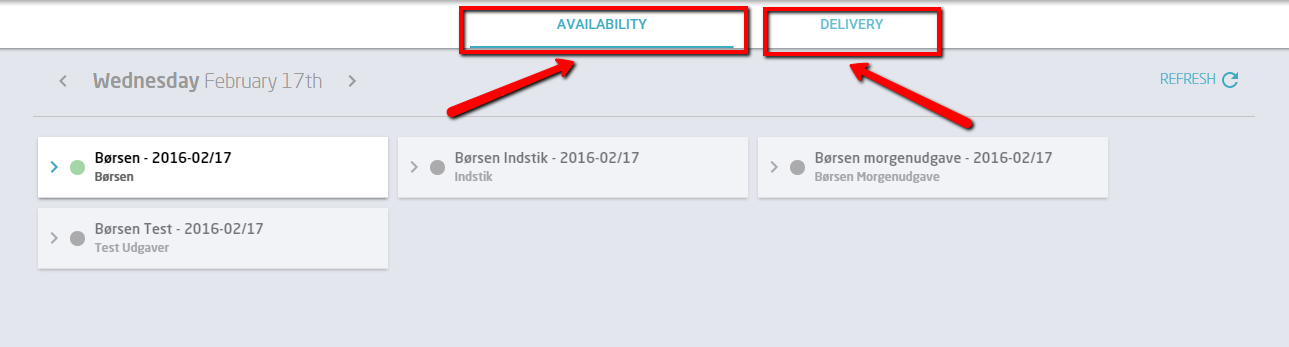
After clicking the “PROCESSING” card you will be displayed a new screen where you are able to choose between AVAILABILITY and DELIVERY as shown below.
Availability
Under “AVAILABILITY” you will be able to find the issues of your publication which have been processed on the chosen day. A green dot gives you the confirmation that the files that you have uploaded for the specific date have been processed and are now available to the user, as indicated by the marked box in the picture below. In the box you can see a number of pages, sections and articles of the issue as well as the time the issue was available for device (apps) and for web.
You will see a box for each of your titles, depending on the level picked in the Context Picker. Boxes greyed out are titles that not yet available for the chosen date. If an issue is not available at the time you expect it to, you can go to the “DELIVERY” tab to see if something is wrong.
Delivery
“DELIVERY” provides information in regard to which publications should have files delivered in order to be processed at a specific time. As you can see in the picture below, one of the publications is planned for processing on the 18th February 2016. The title is marked with red, however, as not all the files needed to be processed have been delivered at this time. Clicking “LOG” will give you more detailed information. A typical source of error is too many missing pages in a section.
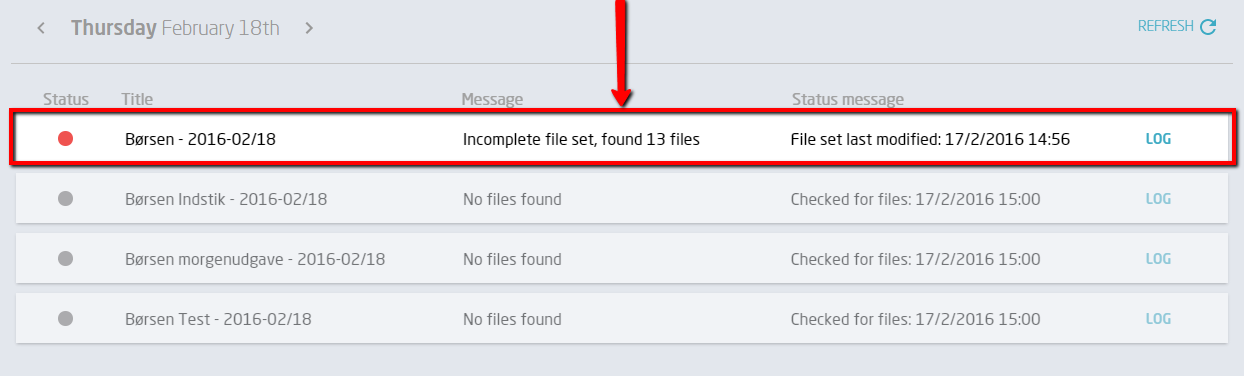
The boxes greyed out indicate that no files have yet been picked up. As Visiolink doesn’t always know your release schedule for each of your titles, our system will be looking for files continuously even though no issue is supposed to come out.
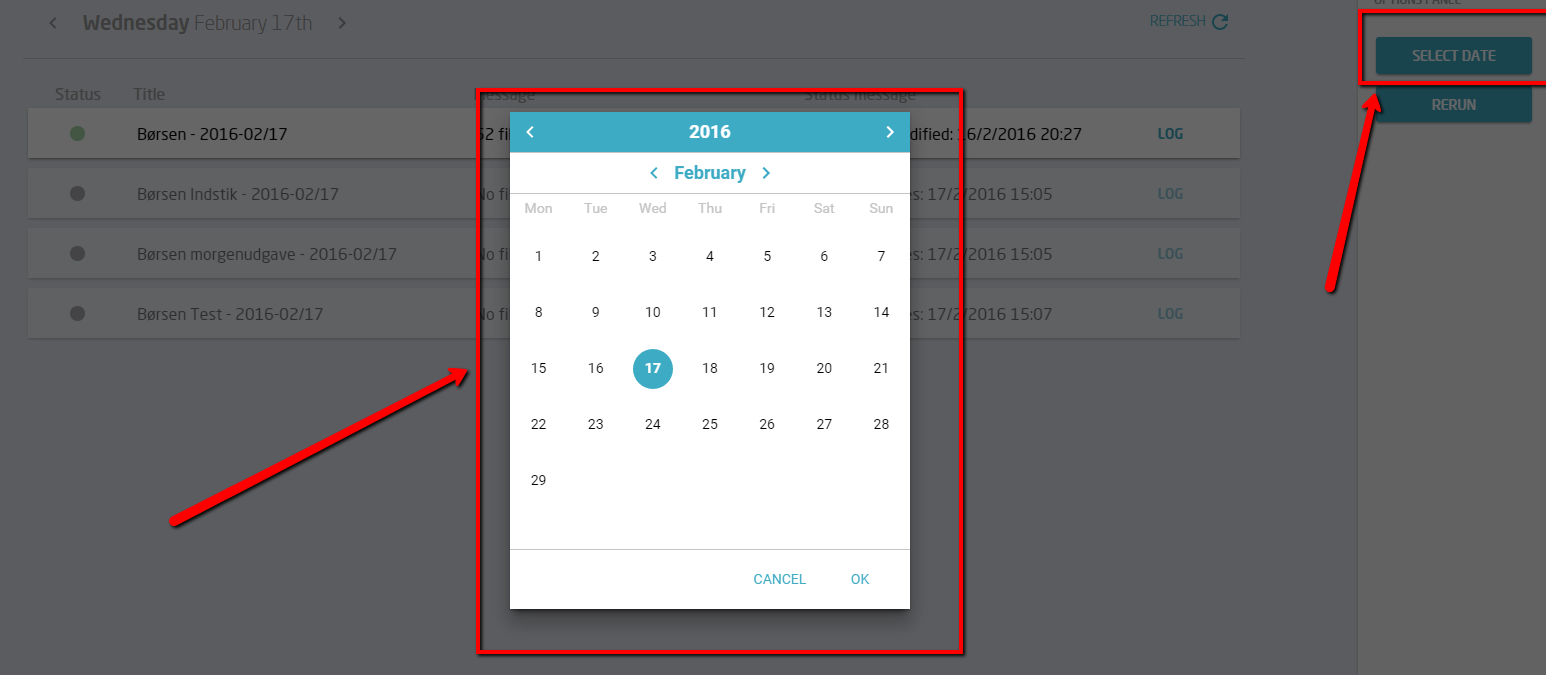
You can browse through dates by clicking the arrows before and after the date indicator in the top left corner, or select a specific date as shown in the picture below.
You can change the sorting by clicking the settings "Status", "Title", "Message" and "Status Message". An arrow will show which setting it is sorted by and whether it's ascending or descending.
Manually activate processing
With Upload Based Processing, files are automatically picked up and processed if they are delivered within a certain time window. The window for automatic processing typically opens one day before the publication date at 00:00 and closes again one day after the publication date at 23:59. If files are delivered within this window, they will automatically be picked up and processed.
If they are delivered outside this time window - either before or after - the processing can be activated manually in the hub. By clicking the “RERUN” button on the right hand side of the screen, as shown in the picture below, you can choose for which titles on the selected date you wish to manually activate a processing:
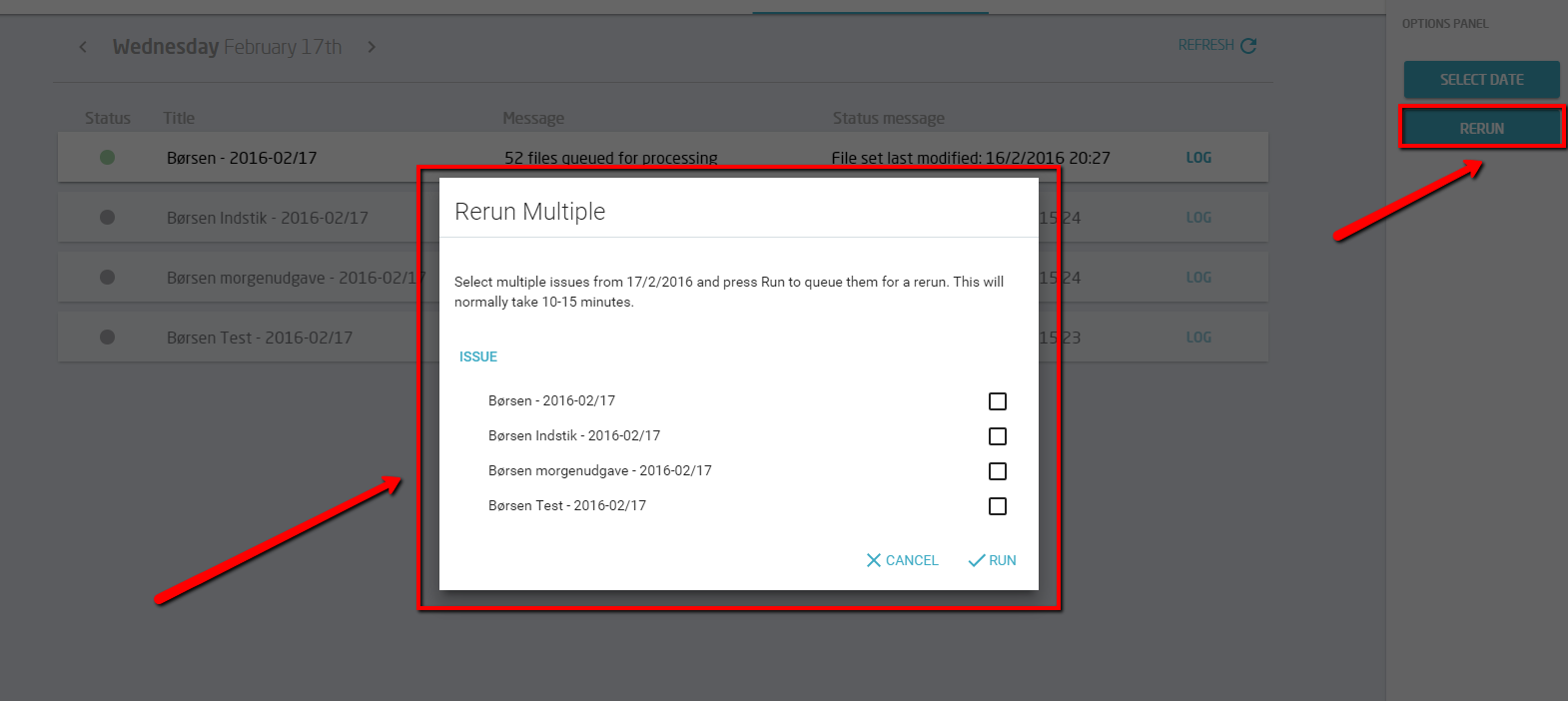
The "RERUN" button will activate a processing of all the files for the chosen publication - PDF files and XML files.
Manually activating a processing a publication is useful if you have delivered missing files after the window for automatic processing has closed.
| NB! Although the label on the button says "RERUN", this does not mean that it can only activate a reprocessing. The button can also activate a first processing (for example, if you have delivered files before the window for automatic processing opens, and you want to check the publication in the Publication overview well in advance - before the publication is released). |
Manually activate XML import
You can also manually activate an XML import.
By clicking the “RERUN XML” button on the right hand side of the screen, as shown in the picture below, you can choose for which titles on the selected date you wish to manually activate an XML import:
The "RERUN XML" button will only activate an import of the XML files for the chosen publication. It will not activate a processing of the PDF files.
Manually activating an import of the XML files for a publication is useful if you have redelivered XML files after the window for automatic processing has closed.
| NB! Although the label on the button says "RERUN XML", this does not mean that it can only activate a reimport of the XML files. The button can also activate a first import of the XML files (for example, if you have delivered XML files before the window for automatic processing opens, and you want to check the publication in the Publication overview well in advance - before the publication is released). |
Page tolerance
The page tolerance is the number of pages that are allowed to be missing before processing begins. If, for example, the page tolerance is 2 and 3 pages are missing, the publication will not be processed. If, on the other hand, only 2 pages are missing and the page tolerance is 2, the publication will be processed. Note that panorama pages technically are missing pages, so bear that in mind when making any changes.
When the "Page tolerance" button is selected, a new window will appear with an overview of the titles and their page tolerance:
The page tolerance can be adjusted for each title by using the arrows to the left and right. When changes are made, a "Save" button will appear on the right:
The new page tolerance is saved when the "Save" button is selected.
Bulk editing page tolerance
With bulk editing, it is possible to adjust the page tolerance for several titles:
When the "Bulk edit" button is selected, a new window will appear with the possibility to overwrite the page tolerance for selected titles:
The page tolerance will be overwritten for the selected titles when the "Save" button is selected:
Comments
0 comments
Article is closed for comments.